eks node image gc
Overview
This guide explains how to configure Image Garbage Collection in kubelet to automatically clean up container images.
This article covers Image Garbage Collection configuration for worker nodes using Amazon Linux 2-based EKS optimized AMI across two management approaches:
- Configuring Image Garbage Collection for EC2 worker nodes managed by EKS node groups
- Configuring Image Garbage Collection for EC2 worker nodes managed by Karpenter for cluster autoscaling
Background
Image Garbage Collection
Effective use of Image Garbage Collection allows efficient disk space usage by the Containerd daemon running on EKS worker node hosts, automatically removing unnecessary images and layers to save disk space.
Environment
EKS
- EKS v1.24
- Karpenter v0.27.0
- Worker Node AMI: Amazon Linux 2-based EKS optimized AMI
Local Environment
- OS: macOS Ventura 13.2.1
- Shell: zsh + oh-my-zsh
- AWS CLI: 2.11.2
Configuration
EKS Node Group
Check UserData
EKS EC2 node groups are managed using Auto Scaling Groups and Launch Templates.
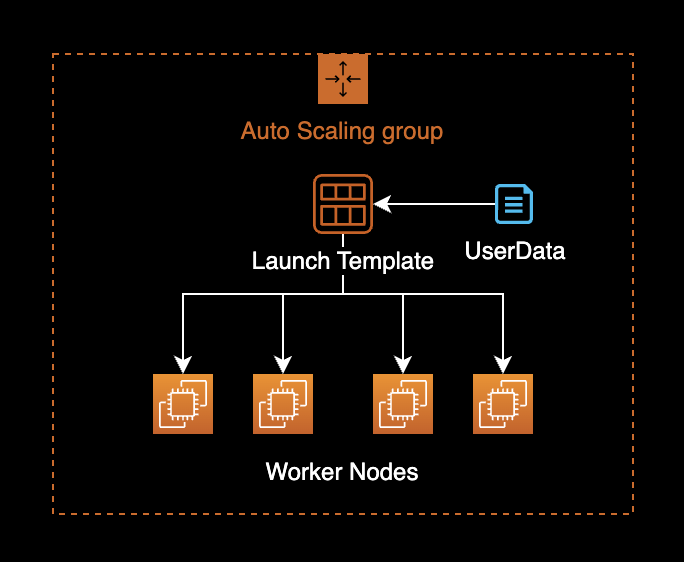
Check the UserData configuration of the Launch Template used by existing worker nodes.
LT_ID=lt-xxxxxxxxxxxxxxxxxSet the LT_ID environment variable to the Launch Template ID currently used by your EKS node group.
Check the UserData configuration of that Launch Template.
aws ec2 describe-launch-template-versions \
  --launch-template-id $LT_ID \
  --query 'LaunchTemplateVersions[*].LaunchTemplateData.UserData' \
  --output text \
  | base64 --decode \
  && echo -e '\n'
MIME-Version: 1.0
Content-Type: multipart/mixed; boundary="//"
--//
Content-Type: text/x-shellscript; charset="us-ascii"
#!/bin/bash
set -ex
B64_CLUSTER_CA=LS0tLS1CRUdJTiBDR...CREDENTIAL...==
API_SERVER_URL=https://ExxxxxxFxxxxxxAExxAECBxCxDAxxxxx.sk1.ap-northeast-2.eks.amazonaws.com
K8S_CLUSTER_DNS_IP=172.20.0.10
/etc/eks/bootstrap.sh <YOUR_EKS_CLUSTER_NAME> --kubelet-extra-args '--node-labels=eks.amazonaws.com/nodegroup-image=ami-07xxxxxxx9xxxfxxx,eks.amazonaws.com/capacityType=ON_DEMAND,eks.amazonaws.com/nodegroup=dev-apne2-financial-x86-eks-node-group --max-pods=17' --b64-cluster-ca $B64_CLUSTER_CA --apiserver-endpoint $API_SERVER_URL --dns-cluster-ip $K8S_CLUSTER_DNS_IP --use-max-pods false
--//--The --kubelet-extra-args option manages detailed kubelet parameter settings.
Modify UserData
Access the AWS Console and modify the UserData value in the Launch Template.
Add --image-gc-low-threshold=50 and --image-gc-high-threshold=70 options to --kubelet-extra-args.
MIME-Version: 1.0
Content-Type: multipart/mixed; boundary="//"

--//
Content-Type: text/x-shellscript; charset="us-ascii"
#!/bin/bash
set -ex
B64_CLUSTER_CA=LS0tLS1CRUdJTiBDR...CREDENTIAL...==
API_SERVER_URL=https://ExxxxxxFxxxxxxAExxAECBxCxDAxxxxx.sk1.ap-northeast-2.eks.amazonaws.com
K8S_CLUSTER_DNS_IP=172.20.0.10
/etc/eks/bootstrap.sh <YOUR_EKS_CLUSTER_NAME> --kubelet-extra-args '--node-labels=eks.amazonaws.com/nodegroup-image=ami-07xxxxxxx9xxxfxxx,eks.amazonaws.com/capacityType=ON_DEMAND,eks.amazonaws.com/nodegroup=dev-apne2-financial-x86-eks-node-group --max-pods=17 --image-gc-low-threshold=50 --image-gc-high-threshold=70' --b64-cluster-ca $B64_CLUSTER_CA --apiserver-endpoint $API_SERVER_URL --dns-cluster-ip $K8S_CLUSTER_DNS_IP --use-max-pods false

--//--
Kubelet Image GC Configuration Parameters
--image-gc-low-threshold=50 Image Garbage Collection will not run until disk usage reaches 50%. Default value in EKS optimized AMI is 80%.
--image-gc-high-threshold=70 Image Garbage Collection always runs when disk usage exceeds 70%. Default value in EKS optimized AMI is 85%.
NAME                       TYPE   DESCRIPTION
--image-gc-high-threshold  int32  The percent of disk usage after which image garbage collection is always run. (default 85)
--image-gc-low-threshold   int32  The percent of disk usage before which image garbage collection is never run. Lowest disk usage to garbage collect to. (default 80)
To check the Image Garbage Collection settings on a running EKS node, run the following command.
$ kubectl proxy
$ curl -sSL "http://localhost:8001/api/v1/nodes/<NODE_NAME>/proxy/configz" \
    | python3 -m json.tool
Replace <NODE_NAME> with the actual node name in the command above.
{
    "kubeletconfig": {
        "enableServer": true,
        "syncFrequency": "1m0s",
        "fileCheckFrequency": "20s",
        "httpCheckFrequency": "20s",
        "address": "0.0.0.0",
        ...
        "imageGCHighThresholdPercent": 85,
        "imageGCLowThresholdPercent": 80,
        ...
    }
}
Default value for --image-gc-high-threshold is 85%, and for --image-gc-low-threshold is 80%.
Save the modified UserData in the Launch Template from the AWS Console.
Instance Refresh
Perform an Instance Refresh on the ASG to apply the modified user data to existing EKS worker nodes.
The Auto Scaling Group will replace EKS worker nodes one at a time using a rolling update strategy.
ASG_NAME=eks-dev-apne2-xxxxxxxxx-x86-eks-node-group-xxxxxxxx-xxxx-xxxx-xxxx-16ab56ee2fec
LT_ID=lt-xxxxxxxxxxxxxxxxx
aws autoscaling start-instance-refresh \
--auto-scaling-group-name $ASG_NAME \
--strategy Rolling \
--preferences '{"MinHealthyPercentage": 100, "InstanceWarmup": 60}' \
--desired-configuration '{
"LaunchTemplate": {
"LaunchTemplateId": "'${LT_ID}'",
"Version": "$Latest"
}
}'{
"InstanceRefreshId": "ee2b6718-79cc-47ff-97d3-7001b374a3c1"
}When instance refresh starts successfully, it returns an InstanceRefreshId as shown above.
Verify Configuration
To check the worker node names, run:
kubectl get node -o wideNAME STATUS ROLES AGE VERSION INTERNAL-IP EXTERNAL-IP OS-IMAGE KERNEL-VERSION CONTAINER-RUNTIME
ip-xx-xxx-xxx-8.ap-northeast-2.compute.internal Ready <none> 6h15m v1.24.10-eks-48e63af xx.xxx.xxx.8 <none> Amazon Linux 2 5.10.165-143.735.amzn2.x86_64 containerd://1.6.6
ip-xx-xxx-xxx-99.ap-northeast-2.compute.internal Ready <none> 23m v1.24.9-eks-49d8fe8 xx.xxx.xxx.99 <none> Amazon Linux 2 5.4.228-131.415.amzn2.x86_64 containerd://1.6.6
ip-xx-xxx-xxx-127.ap-northeast-2.compute.internal Ready <none> 6h20m v1.24.10-eks-48e63af xx.xxx.xxx.127 <none> Amazon Linux 2 5.10.165-143.735.amzn2.x86_64 containerd://1.6.6
ip-xx-xxx-xxx-169.ap-northeast-2.compute.internal Ready <none> 6d5h v1.24.10-eks-48e63af xx.xxx.xxx.169 <none> Amazon Linux 2 5.10.165-143.735.amzn2.x86_64 containerd://1.6.6
ip-xx-xxx-xxx-221.ap-northeast-2.compute.internal Ready <none> 24m v1.24.9-eks-49d8fe8 xx.xxx.xxx.221 <none> Amazon Linux 2 5.4.228-131.415.amzn2.x86_64 containerd://1.6.6Identify nodes that were newly replaced by the Auto Scaling Group's Instance Refresh.
Run the proxy command to connect to the Kubernetes cluster API server.
kubectl proxycurl -sSL "http://localhost:8001/api/v1/nodes/<NODE_NAME>/proxy/configz" \
| python3 -m json.toolReplace <NODE_NAME> with the actual node name in the command above.
{
"kubeletconfig": {
"enableServer": true,
"syncFrequency": "1m0s",
"fileCheckFrequency": "20s",
"httpCheckFrequency": "20s",
"address": "0.0.0.0",
...
"imageGCHighThresholdPercent": 70,
"imageGCLowThresholdPercent": 50,
...
}
}Verify that the --image-gc-high-threshold value is now 70% and --image-gc-low-threshold is 50%, as specified in UserData.
Karpenter
Add the following kubelet settings to the provisioners CRD:
spec.kubeletConfiguration.imageGCHighThresholdPercentspec.kubeletConfiguration.imageGCLowThresholdPercent
Example of modified provisioners YAML:
# Reference:
# https://karpenter.sh/v0.27.0/concepts/provisioners/
apiVersion: karpenter.sh/v1alpha5
kind: Provisioner
metadata:
name: default
labels:
app: karpenter
version: v0.27.0
maintainer: younsung.lee
spec:
# Enables consolidation which attempts to reduce cluster cost by both removing un-needed nodes and down-sizing those
# that can't be removed. Mutually exclusive with the ttlSecondsAfterEmpty parameter.
consolidation:
enabled: true
# If omitted, the feature is disabled and nodes will never expire. If set to less time than it requires for a node
# to become ready, the node may expire before any pods successfully start.
ttlSecondsUntilExpired: 1209600 # 14 Days = 60 * 60 * 24 * 14 Seconds;
requirements:
- key: karpenter.sh/capacity-type
operator: In
values: ["on-demand"]
- key: karpenter.k8s.aws/instance-family
operator: In
values: ["t3a"]
- key: karpenter.k8s.aws/instance-size
operator: In
values: ["nano", "micro", "small", "medium", "large", "xlarge"]
- key: kubernetes.io/os
operator: In
values: ["linux"]
- key: kubernetes.io/arch
operator: In
values: ["amd64"]
- key: topology.kubernetes.io/zone
operator: In
values: ["ap-northeast-2a", "ap-northeast-2c"]
providerRef:
name: default
# Karpenter provides the ability to specify a few additional Kubelet args.
# These are all optional and provide support for additional customization and use cases.
+ kubeletConfiguration:
+ imageGCHighThresholdPercent: 70
+ imageGCLowThresholdPercent: 50When Karpenter Controller creates new nodes, it injects the specified kubelet settings.
Apply the provisioner CRD with added kubelet settings.
kubectl apply -f crds.yamlWorker nodes created by Karpenter Controller will have the kubelet settings declared in the provisioner overridden and applied.
After Karpenter Controller creates a new worker node, verify the applied kubelet settings.
curl -sSL "http://localhost:8001/api/v1/nodes/<NODE_NAME>/proxy/configz" \
| python3 -m json.tool{
"kubeletconfig": {
"enableServer": true,
"syncFrequency": "1m0s",
"fileCheckFrequency": "20s",
"httpCheckFrequency": "20s",
"address": "0.0.0.0",
...
"imageGCHighThresholdPercent": 70,
"imageGCLowThresholdPercent": 50,
...
}
}Verify that imageGCHighThresholdPercent and imageGCLowThresholdPercent are set to the specified values on newly created worker nodes.
References
How do I configure Amazon EKS worker nodes to clean up the image cache at a specified disk usage percentage? Guide published on AWS Knowledge Center
How to configuring kubelet garbage collection in EKS Cluster